From the archive May 2017
An Annotation System for xeogl
An original article from the xeolabs archive. Examples and external tools reflect the time of writing.
I recently made a Sketchfab-style annotation system for xeogl, a WebGL-based 3D engine I've been working on.
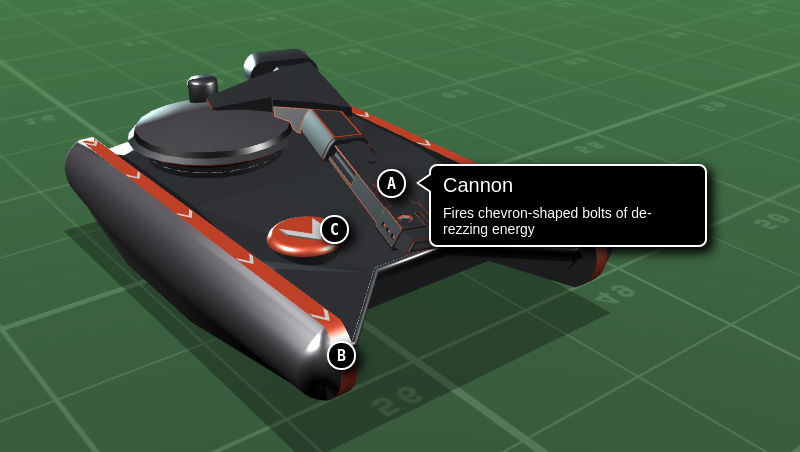
An annotation is a label that you pin to the surface a mesh. Click this screenshot for a demo:
The code below shows how to create an annotation. First, we'll load our model:
var model = new xeogl.SceneJSModel({ // Importing a SceneJS model for fun
    id: "tank",
    src: "models/scenejs/tronTank/tronTank.json"
});
Once the model has loaded, we'll create an Annotation on one of its meshes:
model.on("loaded", function () {

        var annotation = new xeogl.Annotation({
            mesh: "tank.mesh9",             // xeogl.Mesh instance or ID
            primIndex: 468,                 // First triangle vertex in geometry indices
            bary: [0.05, 0.16, 0.79],       // Barycentric coordinates in triangle
            glyph: "A",                     // Symbol(s) for pin
            title: "Cannon",
            desc: "Fires chevron-shaped bolts of de-rezzing energy",
            eye: [-0.66, 20.84, -21.59],    // Camera eye position (optional)
            look: [-0.39, 6.84, -9.18],     // Camera point-of-interest (optional)
            up: [0.01, 0.97, 0.24]          // Camera "up" vector (optional)
        });
    });
The annotation is pinned at the given barycentric coordinates within a triangle of the mesh (the Tank's cannon). Whenever the mesh is transformed or deformed, the annotation will always stick to that position on the surface of the mesh. In the demo, this is demonstrated by the (A) annotation on our Tron Tank's cannon, which will move wherever the cannon goes.
Camera vantage points
As we saw in the previous example, you can optionally specify a camera position from which to view the annotation, given as
eye, look and up vectors. You can then fly the camera to look at the annotation by
passing the annotation to a CameraFlightAnimation:
var cameraFlight = new xeogl.CameraFlightAnimation();

cameraFlight.flyTo(annotation);
Creating annotations by picking
I made annotations easy to create from pick results:
xeogl.input.on("mouseclicked", function(canvasPos) {

    var hit = myScene.pick({ // Ray-pick mesh surface
        canvasPos: canvasPos,
        pickSurface: true
    });

    if (hit) {
        var lookat = myScene.camera.view;

        new xeogl.Annotation({
            mesh:     hit.mesh,
            primIndex:  hit.primIndex,
            bary:       hit.bary,
            title:      "A new world awaits you",
            desc:       "in the off-world colonies.",
            eye:        lookat.eye,
            look:       lookat.look,
            up:         lookat.up
        });
    }
});
With this snippet, whenever we click on the surface of an mesh, we'll create an annotation at that point. We'll also save the current camera position with the annotation, so that we can restore the camera to the vantage point that we created it from (see previous example).
Occlusion culling
The annotation system automatically hides annotations when they are occluded by other objects in the 3D view. You can see this in the demo example, where the (C) annotation disappears while the cannon barrel moves over it.
The system uses a fast GPU-assisted occlusion technique which renders a small point at each annotation's position, then determines the annotation to be occluded when the color of the point's location on the canvas does not match the point. Since reading WebGL's drawing buffer is expensive, the system performs this occlusion test for all annotations in a batch on every 10th frame or so. You'll note a slight lag between when the annotation is occluded/revealed and hidden/shown.
This technique is much more efficient than the standard ray-casting approach for large meshes and number of objects.
Culling is enabled for an annotation by default, but you can disable it:
annotation.culling = false;
Events
Annotations fire some events that you can subscribe to. Let's make it so that when you click an annotation's pin the camera will focus on the annotation and the label will open:
var cameraFlight = new xeogl.CameraFlightAnimation();
var lastAnnotation;

annotation.on("pinClicked", function (annotation) {
    if (lastAnnotation) {
        annotation.labelShown = false;
    }
    annotation.labelShown = true;
    cameraFlight.flyTo(annotation);
    lastAnnotation = annotation;
});
You can also track the annotation's position in Local-space (coordinate space of mesh's geometry before modeling transformation) and World-space (after the modeling transform):
annotation.on("localPos", function(localPos) {
    console.log("Local pos changed: " + JSON.stringify(localPos, null, "\t"));
});

annotation.on("worldPos", function(worldPos) {
    console.log("World pos changed: " + JSON.stringify(worldPos, null, "\t"));
});
The Local position will change when the geometry is edited, while the World position will change when the geometry is edited and/or the modeling transform is updated.
Styling
Annotations manage their HTML elements internally, giving them hardcoded CSS class names. The rules for those classes are defined in annotation-style.css, so you can tweak that file if you want to customize the appearance of your annotations.
Conclusion
So there you have it - an annotation system for xeogl that's inspired by the one on Sketchfab.
The main points in this introduction were:
- The Annotation component class provides the means to pin labels on Entities that have triangle mesh Geometries.
- Since an annotation is pinned to a barycentric location with a its triangle, it can dynamically recalculate its Cartesian coordinates from the triangle vertices whenever the Mesh is transformed or the Geometry is edited.
- An annotation can be configured with a camera vantage point from which to view it. This is useful for focusing the camera on the annotation, as part of a presentation.
- The annotation API makes it easy to create annotations from the results of picking operations.
- An Annotation will automatically hide itself when occluded by another object in the 3D view.
- You can customize the appearance of annotations by editing their CSS stylesheet.
- See the demo example to see annotations in action, click VIEW SOURCE so see the source code.
Thanks for reading!
